Free browser tool

Image Color Picker

Extract precise HEX, RGB, and HSL values from any image instantly in your browser. Upload an image, pick a pixel, copy the color, and extract a clean palette.

Private Your image stays on your device.
Precise Pick exact pixel-level color values.
Palette Copy swatches or CSS variables.
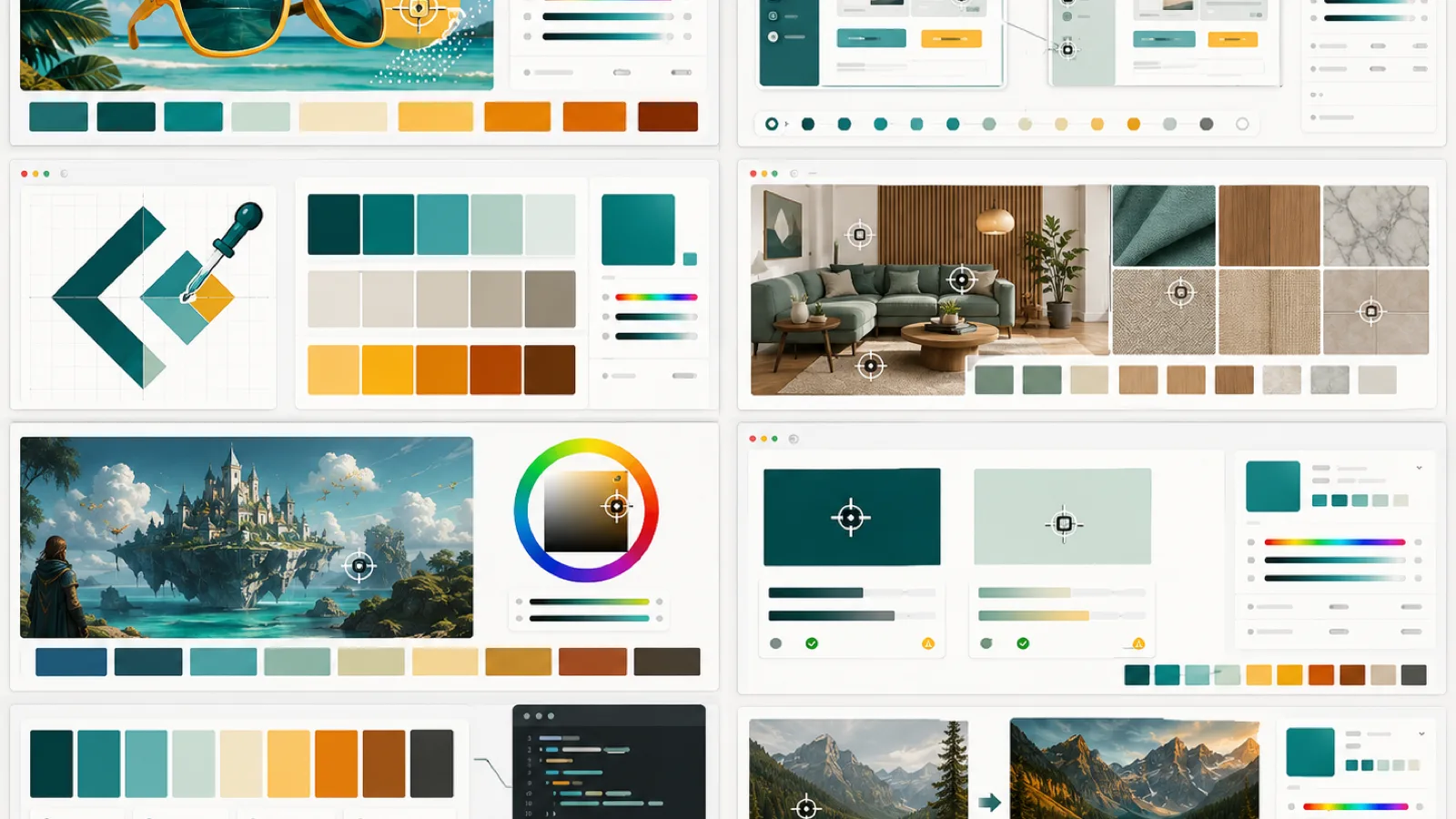
Image Color Picker workspace collage with photo sampling, palette extraction, contrast checks and CSS color output
Image Color Picker preview: sample a pixel, read the color code, then turn the image into a reusable palette.
Extracted Palette

Get Inspired

Start from real visual references and turn them into clean, usable color systems. Each example below shows a different reason to use an image color picker: matching an interface to a product photo, sampling a moodboard, checking one exact pixel, or turning a finished visual into a reusable palette.

Social media campaign thumbnail being sampled into a clean teal and amber image palette

Social Thumbnail Palette

This new case shows a campaign thumbnail being sampled before a launch. The tool pulls out tropical teal, deep shadow tones, and a warm yellow-orange accent so the post cover, CTA, and carousel slides can share one visual system.

UI screenshot color audit with sampled interface colors and palette chips

UI Screenshot Audit

Upload a rendered UI screenshot and compare real pixels with the intended palette. This is useful when an implementation looks slightly off because shadows, antialiasing, or browser rendering changed the final visible color.

Abstract logo mark and brand kit colors extracted into primary neutral and accent swatches

Logo Brand Kit

When a logo or brand mark has strong geometry, the color picker helps separate primary color, secondary color, supporting neutral, and accent. The result can become a first pass at a practical brand kit.

Interior material photo with fabric wood stone and paint samples converted into a palette

Interior Material Palette

Interior references contain many subtle material colors: fabric, wood, stone, plant greens, and wall neutrals. Sampling these areas creates a grounded palette for decor pages, moodboards, and product styling.

Result Gallery

These generated case images show the full path from landing-page visual to practical color output. They are included so visitors can understand what the tool does before they upload their own image.

Key Features

Everything needed for quick browser-based image color picking. The page focuses on practical output: precise color values, a readable palette, and copy actions that work for design and development workflows.

Instant Extraction

Upload a screenshot, logo, product photo, moodboard, or generated visual and begin sampling immediately. The selected color updates in the inspector with HEX, RGB, and HSL values so you can compare formats without switching tools.

Pixel-level Sampling

Click or drag across the canvas to inspect a specific coordinate. This is helpful when the image has gradients, soft shadows, anti-aliased edges, or compressed areas where nearby pixels look similar but produce different values.

Multi-format Export

Copy a single color in the format your workflow needs, then export the extracted palette as CSS variables. Designers can keep clean swatches, while developers can paste values directly into a stylesheet or component theme.

Adjustable Palette Size

Use the palette size control to extract 4 to 12 dominant colors. A smaller palette is better for brand systems, while a larger palette is useful when you need supporting neutrals, shadows, accents, and background tones.

Use Cases

Use Image Color Picker whenever a real image needs to become a usable color system. The tool is especially useful when the source image already has the right emotional direction but the exact implementation colors are still unknown.

Web Design

Match buttons, backgrounds, cards, and section dividers to the colors already present in a hero image or product screenshot. This keeps the page cohesive instead of introducing unrelated UI colors.

Brand Design

Extract palettes from logos, customer-provided references, or brand photography. You can quickly identify the primary accent, supporting neutral, dark text color, and softer background colors.

Interior Decor

Pick wall, fabric, wood, metal, and stone colors from inspiration photos. The palette can help compare materials before writing a style guide, shopping list, or room concept.

Digital Art

Build consistent character, environment, and lighting palettes from reference art. The pixel picker helps separate a real accent from a blended highlight or shadow.

Social Media Content

Extract colors from thumbnails, campaign banners, and creator assets. A repeatable palette makes carousels, covers, and announcement posts feel like one campaign.

Frontend QA

Check whether an implemented UI matches a design reference. Upload a screenshot, sample the rendered pixel, and compare the result with the intended design token.

How It Works

Three steps from image to copied color values. The tool is designed to make the first result fast, then give you enough control to refine the palette.

Upload Image

Drop in a JPG, PNG, WebP, screenshot, product image, UI mockup, or generated asset. The file is drawn into the browser canvas so you can inspect it without creating an account.

Pick a Pixel

Click anywhere on the canvas and inspect the selected coordinate. Drag slowly across nearby areas when you need to compare a highlight, edge, shadow, or exact brand color.

Copy Code

Copy HEX for design tools, RGB for quick CSS use, HSL for controlled adjustments, or a CSS variable block when you want to move the full palette into implementation.

Pricing

Clean utility pricing: no accounts, no limits, no watermarks. The goal is to keep the color picker available as a lightweight utility you can open whenever a visual reference needs exact color values.

$0

Always Free

Pick colors from images, extract palettes, and copy CSS-ready values directly in the page. There is no trial wall or export lock on the core color tools.

Local

No Login Required

Use the tool in your browser without signing in. Uploaded images stay on your device, which makes the workflow more comfortable for client references and private screenshots.

FAQ

Detailed answers for common image color picker questions.

Are my images uploaded to a server?

No. Image inspection runs locally in the browser canvas. The page reads the pixels that your browser can display and uses them to calculate selected colors and palette swatches.

Which image formats are supported?

Use common browser-readable formats like JPG, PNG, WebP, and screenshots. If the browser can load the file as an image, the color picker can usually draw it to the canvas and sample it.

Can I extract multiple colors?

Yes. The palette control can extract 4 to 12 visible image colors. Use fewer colors for a focused brand palette and more colors when you need secondary tones, neutrals, and accents.

What is the difference between HEX, RGB, and HSL?

HEX is compact and common in design tools. RGB is direct for CSS and many graphics workflows. HSL separates hue, saturation, and lightness, which makes it easier to adjust a color while keeping the same hue family.

Why does one image produce different nearby colors?

Photos and screenshots often contain gradients, compression artifacts, antialiasing, and shadows. Two pixels that look almost identical can have different values, so the coordinate readout and magnifier help you choose deliberately.

Can I use this as a photo color picker?

Yes. Upload a photo, click the exact area you care about, and copy the selected value. It works for product photos, interiors, landscapes, portraits, thumbnails, and visual references.

How should I choose colors from the extracted palette?

Start with one primary accent, one readable dark color, one light background, and one supporting neutral. Add extra colors only when the interface or campaign needs clear secondary emphasis.

Can developers use the output directly?

Yes. Copy a single value or export the palette as CSS variables. That gives developers a quick bridge from image reference to real implementation without manually rewriting each color.
Ready to find the perfect shade?

Use the image color picker above to sample a real visual reference, inspect exact pixel values, compare the generated palette, and copy clean colors into your next design or development workflow.

Start Picking Now